
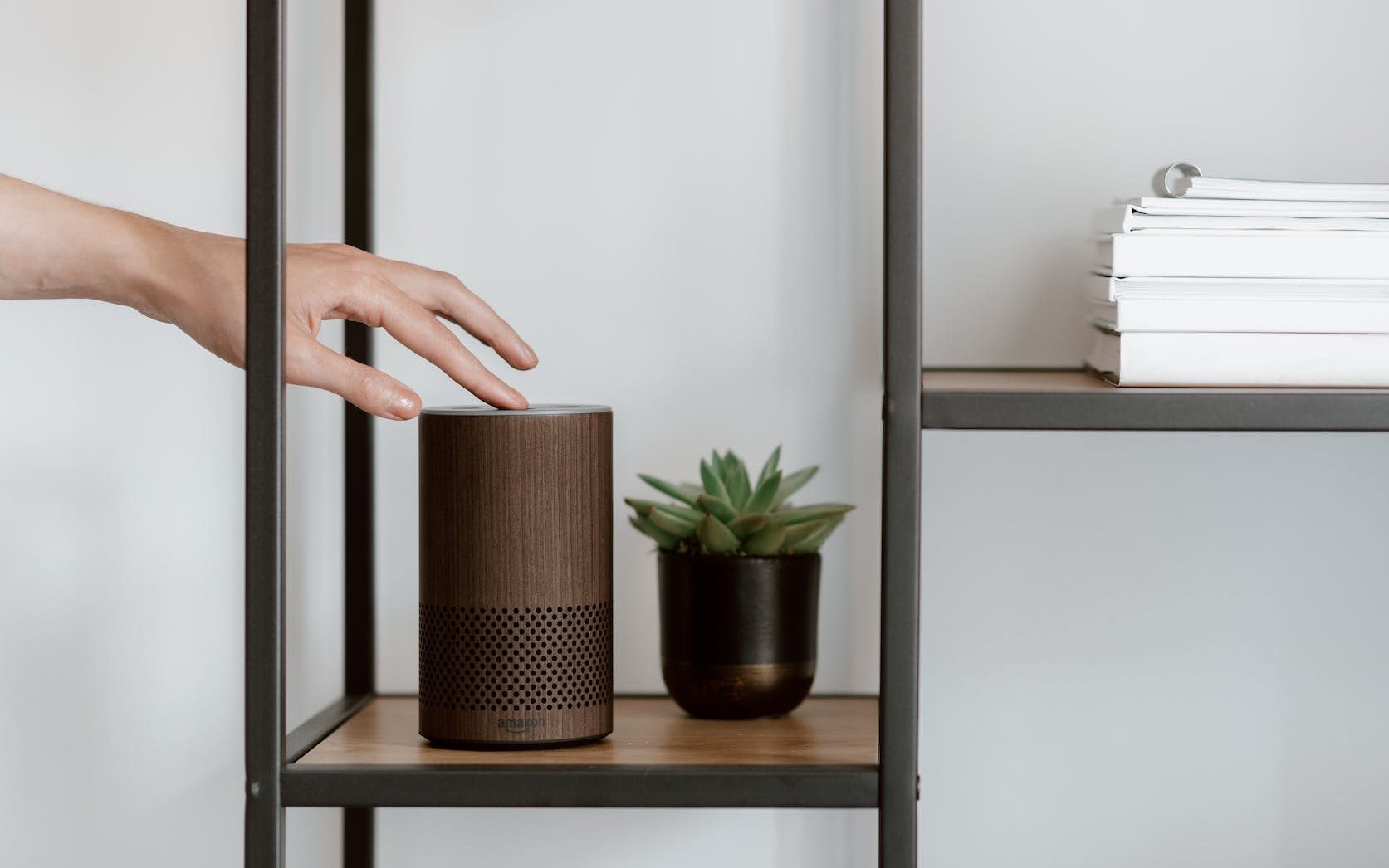
Love Apple Music but just got an Echo? Don’t sweat it! Here’s how to stream your favorite tunes in minutes:
Method 1: Bluetooth Bliss (Free, but limited)
This method is perfect if you’re a free Apple Music user or if you only listen to music that’s stored locally on your device. It’s also a good option if you don’t want to go through the hassle of setting up the Apple Music skill.
Here’s what you’ll need:
- An Echo speaker with Bluetooth
- An Apple device with Bluetooth (iPhone, iPad, iPod touch, or Mac)
Here’s how to do it:
- Make sure Bluetooth is turned on on both your Echo speaker and your Apple device.
- Bring your Apple device close to your Echo speaker.
- Say “Alexa, connect to [your device name].” For example, you could say “Alexa, connect to my iPhone.”
- You should hear a chime from your Echo speaker and something to the effect of “[Your device name] connected to Echo.”
- Open the Apple Music app on your device and start playing your music. The music should now play through your Echo speaker.
- When you’re done listening to music, just say “Alexa, disconnect from [your device name].”
Things to keep in mind:
- This method only works for music that’s stored locally on your device or for Apple Music songs that you’ve downloaded for offline listening.
- You can’t control your music playback using voice commands with this method. You’ll need to use your Apple device to control playback.
- The sound quality may not be as good as using the Apple Music skill, as Bluetooth can sometimes compress audio.
Method 2: Skill it Up (Paid Apple Music subscribers only)
This method is the way to go if you’re a paid Apple Music subscriber and you want full control over your music playback using voice commands.
Here’s what you’ll need:
- An Echo speaker
- An Amazon account
- A paid Apple Music subscription
Here’s how to do it:
- Open the Alexa app on your smartphone or tablet.
- Tap on the “More” tab in the bottom right corner of the screen.
- Tap on “Skills & Games.”
- In the search bar, type “Apple Music” and then tap on the Apple Music skill.
- Tap on “Enable Skill.”
- You’ll be prompted to sign in to your Apple Music account. Enter your Apple ID and password and then tap on “Sign In.”
- Once you’re signed in, you’re ready to start using voice commands to control your Apple Music playback.
Here are some voice commands you can use:
- “Alexa, play [song name] from Apple Music.”
- “Alexa, play [artist]’s latest album from Apple Music.”
- “Alexa, play the playlist from Apple Music.”
- “Alexa, shuffle my Apple Music library.”
- “Alexa, skip this song.”
- “Alexa, pause the music.”
- “Alexa, resume the music.”
Things to keep in mind:
- You can only use the Apple Music skill with one Apple Music account per Amazon account.
- If you have multiple Echo speakers, you can set up the Apple Music skill on each one so that you can control your music playback from any room in your house.
Bonus Tip:
Want to make Apple Music your default music service on your Echo speaker? Here’s how:
- Open the Alexa app on your smartphone or tablet.
- Tap on the “More” tab in the bottom right corner of the screen.
- Tap on “Settings.”
- Tap on “Music & Podcasts.”
- Under “Your Default Services,” tap on “Default Music Service.”
- Select “Apple Music.”
Now you can simply say “Alexa, play [song name]” and your Echo speaker will start playing the song from Apple Music, without you having to specify the service name.
Now go forth and rock out with your Echo!
Some links in this post are Amazon Associate links, meaning we may earn a small commission if you purchase through them. However, this does not affect our recommendations; we only suggest products we genuinely believe in. Your support helps us keep creating valuable content. Thank you!