
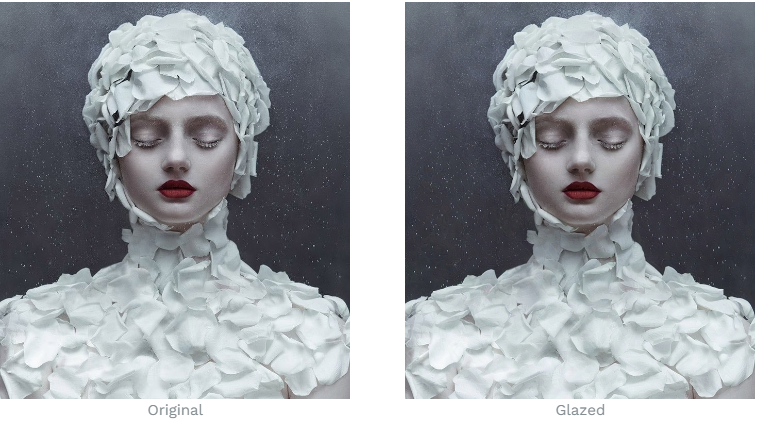
Artists have long struggled against the unethical use of AI to generate art without proper permissions. In the wake of Midjourney AI’s art theft scandal, University of Chicago researchers have introduced Glaze and Nightshade, two desktop apps that not only make images unreadable by AI models but actively harm them if they try. Glaze adds subtle “noise” to your image, while Nightshade inserts “poisoned” data to confuse AI. These tools, effective against various AI models, allow artists to share their work online without fear of exploitation. While they require some extra steps, the added protection is worth it for artists navigating the digital realm.
Read more about Glaze and Nightshade on University of Chicago’s website: What is Glaze
Setting Up Glaze and Nightshade: A Quick Guide
- Download Requirements:
- Glaze and Nightshade are resource-intensive, requiring:
- For Windows: Nvidia GPU, CUDA Toolkit, 4GB storage.
- For Mac: Apple M1/M2 processor, MacOS 13, 4GB storage.
- Not meeting specs? Use WebGlaze, a browser-based version.
- Glaze and Nightshade are resource-intensive, requiring:
- Installation Steps:
- Unzip the downloaded files.
- Open Glaze to download necessary files.
- Wait for the download to complete.
- Nightshade (Optional):
- Open Nightshade.
- Select your image.
- Choose intensity and render quality.
- Add poison tag and click “Run.”
- Glaze:
- Open Glaze.
- Select your image.
- Choose Glaze intensity and render quality.
- Click “Save As…” to export.
- Click “Run Glaze” and wait for rendering.
- Protecting Your Art:
- Glaze and Nightshade prevent AI theft without compromising image quality.
- The extra time spent is a small tradeoff for safeguarding your creative work.
- Now, share your art confidently online, protected from AI exploitation.*
Note: Glaze and Nightshade are effective against Midjourney, Stable Diffusion, and DALL-E. Both apps remain resilient, even against attempts to bypass their effects. Use them to shield your art and reclaim control over your creative endeavors.